
Shop with your list
Check items off, clear what you've bought, copy the list to send it, and see which recipe each item is for.
Updated November 12, 2026
Check items off
Tap the circle next to an item. It's crossed out but stays where it is, so the list doesn't jump around while you shop. Tap it again to undo.
To clear what you've bought, open ⋯ and choose Remove Checked Items. Remove All Items empties the list but keeps it.
To remove one item, swipe left and tap the trash on your phone, or choose the trash on the web.
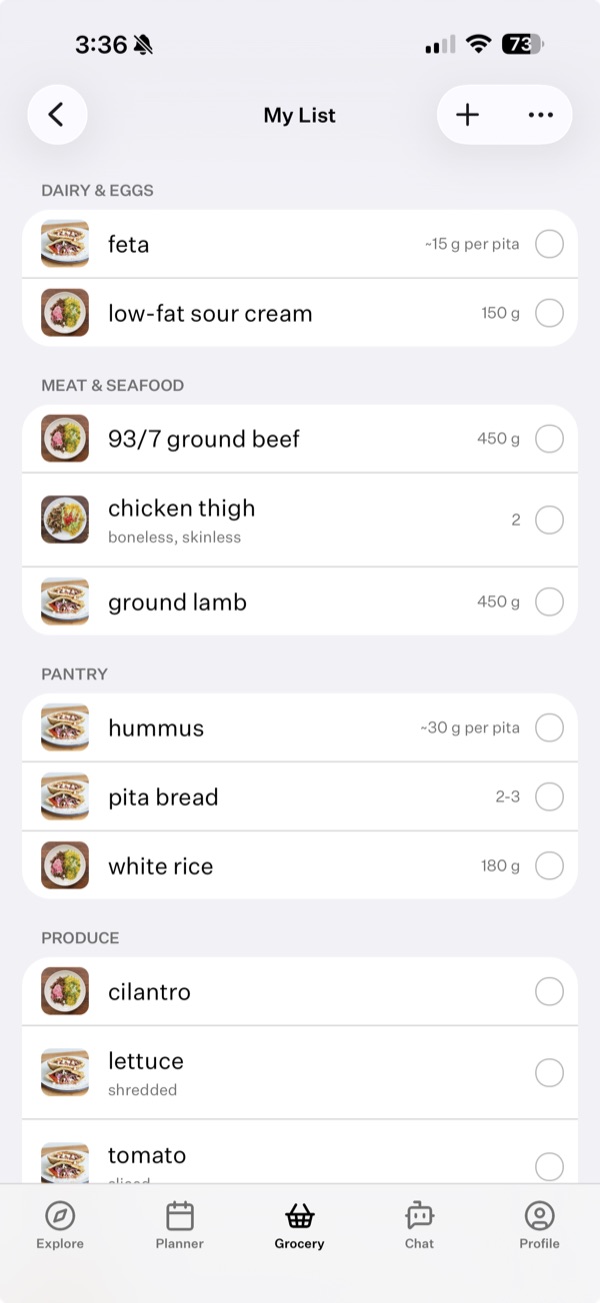
See which recipe an item is for
Show Recipe Details shows each item's recipe and how much that recipe needs. Tap the recipe's picture to open it.
- Phone: Settings → App Settings → Show Recipe Details. It's on unless you turn it off.
- Web: in a list, open ⋯ and choose Show recipe details. It shows up once the list has something from a recipe.
Send the list to someone
Open ⋯ and choose Copy Items to Clipboard, then paste it into a message. You'll get one line per item, with its note.
Want someone to shop from the same list as you? Invite them to your household and you'll both see every list. See What is a household?
Add a note to the list
Notes go at the top of a list, for things like “Use the coupon” or “Party on Saturday”. On your phone, open ⋯ and choose Add Note. On the web, click Add a note… under the name.
Shopping together
If you're in a household, you both see the same lists, including what's checked off. Changes show up when the list refreshes. On your phone, pull down on the list. On the web, reload the page.
Something here out of date or unclear? Email support@cookwell.com.